
Add a client
Create a new client
Add a new client by pressing on 


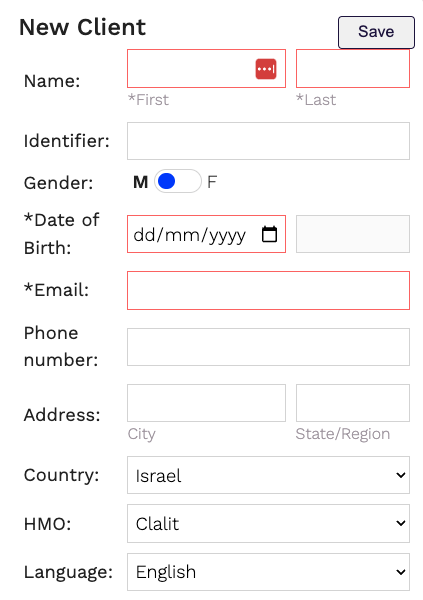
Please note:
- The Date of Birth value determines the version of the MOXO test:
- kid's version - 14.40 minutes length, ages 6-12
- Teens & Adults - 18.40 minutes length, ages 13-99
- Language will determine the presentation language of the test instructions.
Client Background Form
Once you press save you will be directed to the Client Background Form. Here you can fill out important information about pre-existing diagnoses or suspected disorders that may exist for that client. When done click on
Editing Client's Details
If you would like to edit the client's details at any time simply navigate to that client's details page by clicking on the client's icon
You can edit your client's details at this time, and when you are done make sure to press
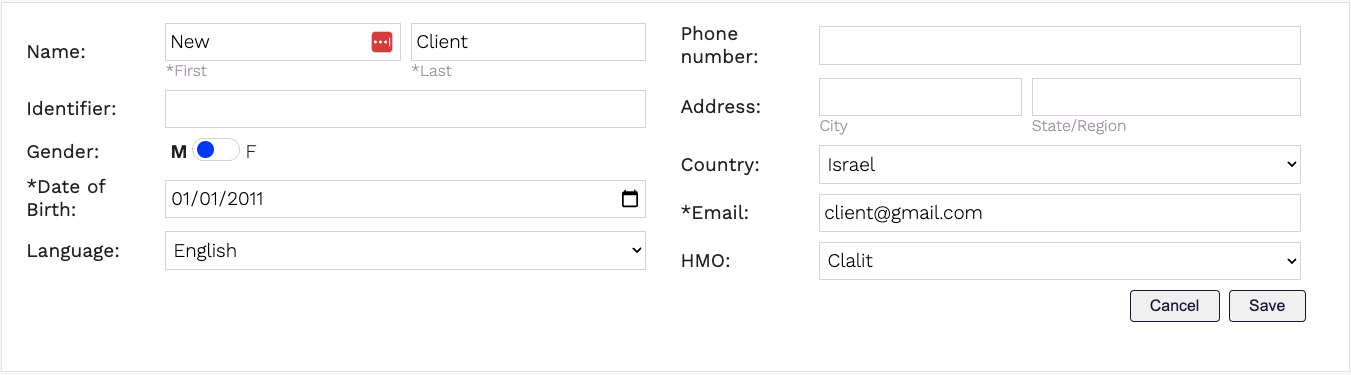
Please note:
Changing the Date of Birth will affect the type of test created. If editing the date of birth changes the client's age from below 13 to above or vice versa, make sure to delete any not-yet started tests and create them again.
Once you’ve completed thee steps your client's profile is set up and you are ready to add tests!